ChatGPT
 Gemini
 Claude
 Perplexity
 DeepSeek
 Grok
Grok

The query of HubSpot and Google Studio integration has been doing rounds on the Internet. With an urge to be a Good Samaritan, we couldn’t resist ourselves to provide you with a free helping guide.
While dealing with one of our clients at GrowthSpree, we also stumbled upon this unusual riddle. It included creating reports with division and percentage calculations. HubSpot reports were not producing an accurate graph representation, leading to erroneous analysis.
Limitations of HubSpot Reports
- Percentage calculations are a little bit complex
- Cannot be scheduled to share to professional virtual groups like slack, email, etc.
- Not as customizable and flexible for presentations as Data Studio
- Manipulating multiple data sources is complicated and not centralized in one dashboard
This is when it hit us that we should try to represent these reports in Google Studio as it does have the features to do so. But the important question that remains is -how to transfer the HubSpot data to Google Data Studio without spending a penny.

Jake Peralta might not believe us, but we are making sure you do! Happy reading ;)
Process of Integrating HubSpot with Google Data Studio
Let’s begin with the step-by-step process.
Data Clarity is the key

The data we send needs to be well-defined in HubSpot with accurate properties. Make sure to check all the properties that need to be transferred, like Name, Email, No of meetings booked, etc., depending on the requirements. Data can be in the form of a list, some property filters or can be manually added.
Send Data to Google Sheets via Workflow
We can easily send all the data to Google Sheets using HubSpot workflow.
But first, we need to integrate them both.
Go to Settings → Integrations → Connected Apps → Seach for Google Sheets → Install
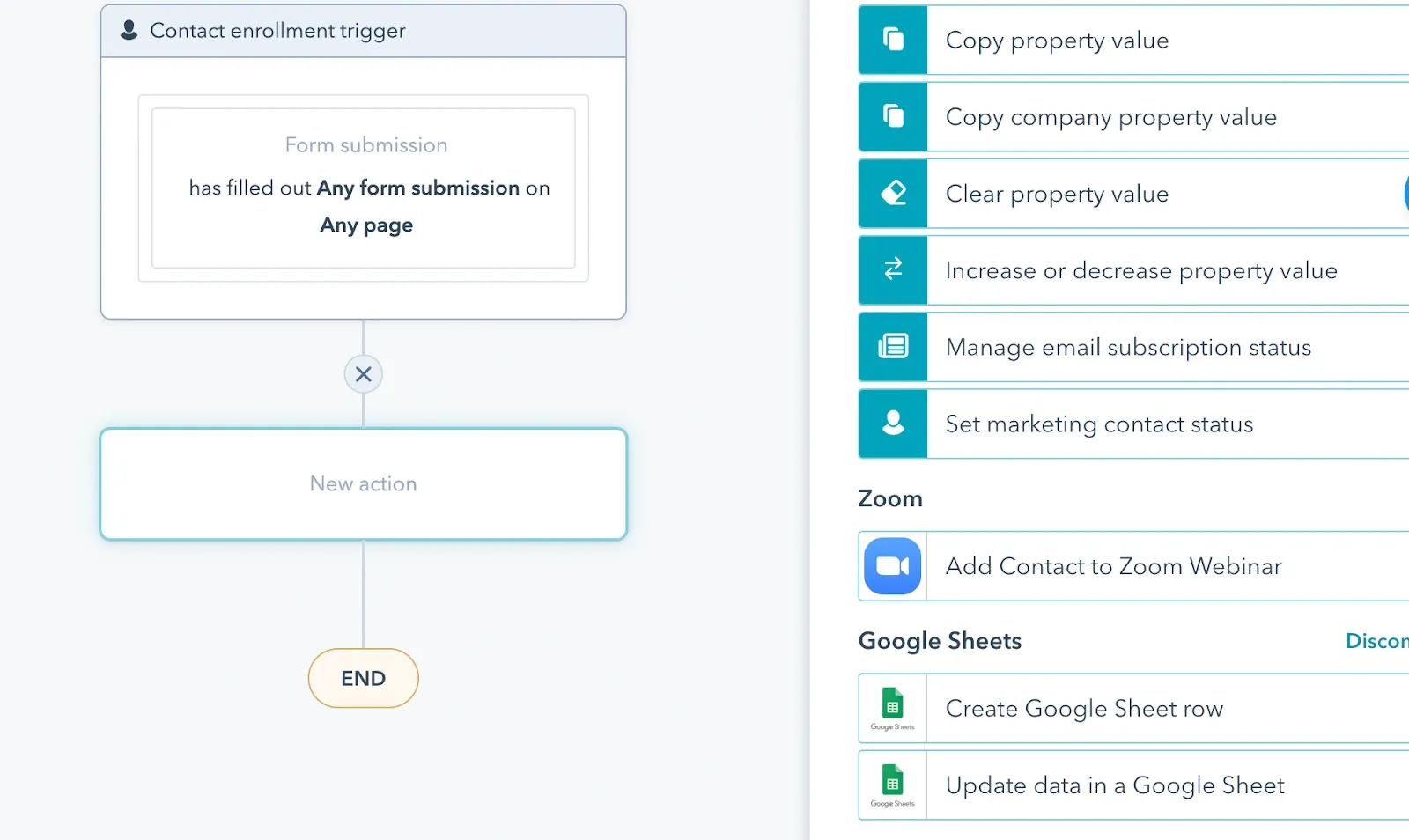
Now, we will create a workflow and define the enrollment trigger required, which can be a list, a property like Meeting Status = Completed, form submissions, etc.
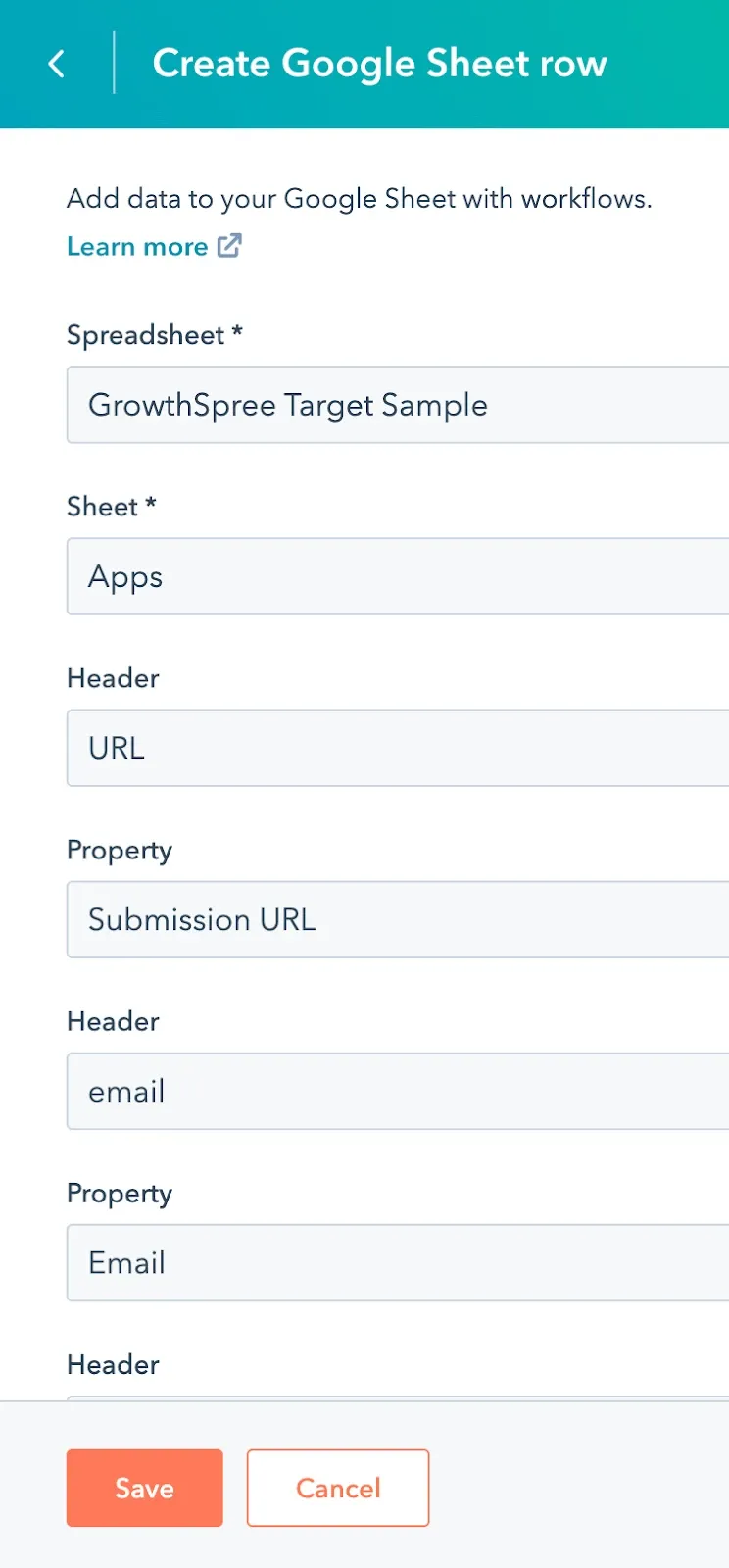
Select “Create Google Sheet row” as your action and choose the Sheet you want to add the data to.
Add all the properties and match them against the headers of the Google Sheet. For example, if one of the headers in your Google sheet contains Email, you can choose the property Email to populate the values for the column Email.
Connect Google Sheets to Google Data Studio
Once you have logged in to your Google Data Studio account, follow the steps:
Step 1: Click on Create button on the left navbar
Step 2: Select Data Source
Step 3: Select Google Sheets as your Google Connectors
Step 4: Click on Authorize button
Step 5: Click on Allow
Step 6: Select the Google Sheet of your choice
Step 7: Make sure to tick the checkbox that says -Use first row as headers
Step 8: Click on Connect
Step 9: Click on “Create Report”
The next step would be to create reports with the available data by using different properties, filters, and graph representations.
Difference between HubSpot Reports and Google Studio Reports
Unlike Hubspot, Data Studio helps you manipulate multiple data sources to produce a single page and centralised report.****
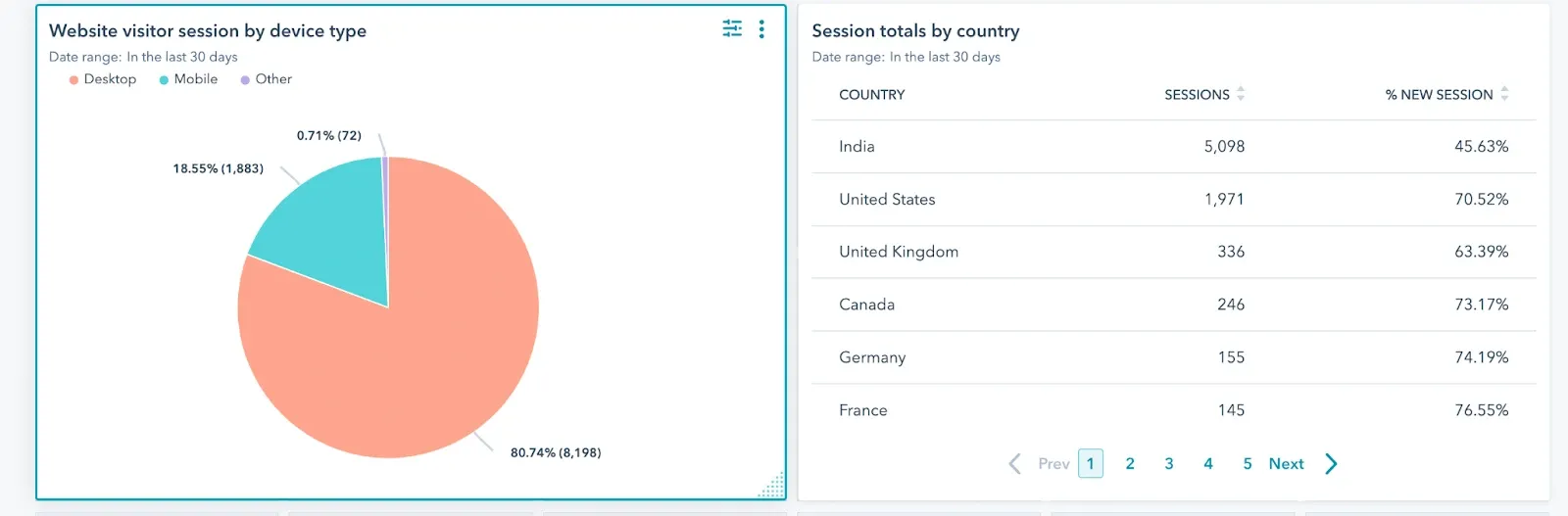
HubSpot Report
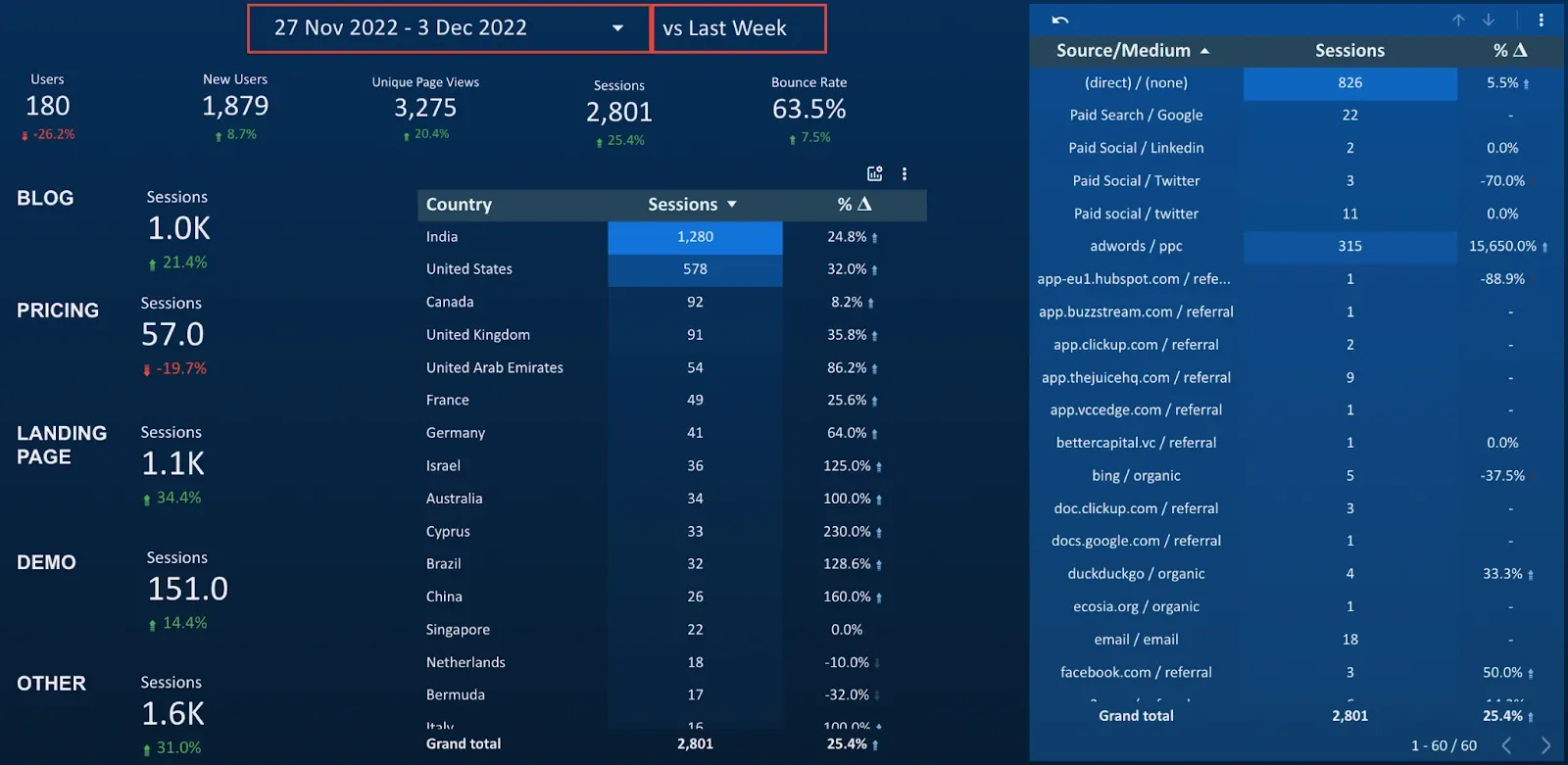
Google Data Studio
Now, go and impress your boss with a fancy single dashboard!